Saturday, October 21, 2023

Fixing GE WBSE3120B1WW Washing Machine

This is a twenty year old washing machine. Today it wanted to quit. Its motor no longer turned. although the water pump still worked, so water was getting drained when the time was up. 

I tried resetting the machine following the instructions found on YouTube: unplugged it, and then plugged it back in after one minute. Within 30 seconds after it was plugged back in, I opened and closed the lid six times, each time the magnetic switch clicked.

That did not help. So, I opened its front panel, and measured the voltages on the motor connector pins. I could not find a diagram for this washing machine online, but I did notice that the label on the motor says "115 V 60HZ 9.2/7.3A", so I knew that at least one of the pins on the connector should read 110 V.

None of the pins had 110 V. So, I knew that the motor was not getting adequate power. So I decided to trace the connection from the motor to the control panel.

After removing the control panel, I saw that there was a schematic diagram for this washing machine stored behind the control panel. Thanks, GE!

The diagram is too big to fix onto an 8 inch by 14 inch scanner surface. The following is the portion of the diagram on the motor connection:


The way GE marks the wire colors is that the first letter is the initial of the main color, and the second letter is the color of the stripe. For example, VW is a violet color wire with white stripe. RB is a red wire with a blue stripe. A wire with a solid color starts with the initial of the color, and then followed by the letter "X". For example, solid yellow would be YX, and solid red would be RX. "NX" is for solid navy blue. From this diagram, we can see that we should be getting 110 V on the navy wire "NX". 

The navy blue wire goes to a relay, as one would expect. The relay looks like this:


Of course, we now need to test this relay and see if it is indeed causing the problem. In fact, broken connections on M1, M3, or M7 could all cause the motor not to get power.

I removed the control board from its plastic housing, think that I might have to remove this relay from the circuit board for testing. But it turned out to be much simpler than I thought: the solder around one of its pins were burned away, and the pin did not appear to have contact with the circuit board. So, I cleaned the pin and re-soldered the pin to the circuit board.

I reinstalled the control panel back onto the washing machine. It is now working fine. 


Thursday, June 15, 2023

A Botched Attempt to Update TFS Server 2018 but with A Good Ending

 When updating TFS Server 2018, I left the "install search"  check box checked, and it led to a disaster. 

The "elastic search" service that TFS Server 2018 tried to install went berserk, and ate up a lot of RAM. So much so that another VM on the same host that ran the SQL server slowed down to a crawl. Then the TFS Server 2018 update failed with a message saying "TF255356: The following error occurred when configuring the Team Foundation databases: TF400711: Error occurred while executing servicing step 'Install Local Contribution Web Platform On Prem' for component Publish Extensions during FinishInstallUpdates". The reason in the log file: SQL timeout.

Not knowing what was going on in the background, I stopped the update, restored the database, and re-tried several times. Each time I got the same error.

I had to try to complete the update on a different machine, with a different SQL server. Since this was no longer a minor update, I upgraded the TFS Server 2018 to Azure DevOps Server 2022. Everything worked. Then I tried to move the SQL databases to the old SQL server. As soon as I completed the move, the TFS server, oh no, the Azure DevOps Server 2022, slowed down to a crawl again. 

It seemed that I had to leave the TFS server, oh wait, the Azure DevOps Server 2022, on the new hosts. So I started to clean up the old hosts and tried to remove any traces of the old TFS Server installations. There were several TFS Server folders in "C:\Program Files". I tried to delete them all, since they no longer show up on the installed applications list of Windows. But the TFS Server 2018 folder could not be deleted because it was in use by some running process. 

I sorted the running processes by memory usage, and saw that at the top there was a running process for "elastic search" that ate up a huge amount of RAM. Then I discovered that this process was from a Windows service installed by the TFS Server 2018. The service was "elasticsearch-service-x64". Its files were in the TFS Server 2018 folder. I stopped the service, and then removed it by running "sc delete elasticsearch-service-x64" on a admin command prompt. 

Now the host has regained all the RAM, everything is back to normal. The SQL server is no longer running at a snails pace. And the server is now the latest -- Azure DevOps Server 2022.0.1.


Saturday, May 27, 2023

OData Route 404 Error after Migrating from .NET Framework to .NET Core

 I have a global OData function in .NET Framework that uses a routing attribute:

[ODataRoute("GetSalesStats(SellerId={sellerId}, BuyerId={buyerId}, FromTime={fromTime}, ToTime={toTime})")]

This was working fine. Now with .NET 7 (.NET Core), I started using HttpGet attribute for routing:

[HttpGet("odata/GetSalesStats(SellerId={sellerId}, BuyerId={buyerId}, FromTime={fromTime}, ToTime={toTime})")]

This did not work. The difference is that the HttpGet attribute does not like the spaces after the commas. After removing the spaces, the following works fine:

[HttpGet("odata/GetSalesStats(SellerId={sellerId},BuyerId={buyerId},FromTime={fromTime}, ToTime={toTime})")]

Now I just need to go find all the spaces that I need to remove:-).

Update: When an entity has multiple key columns, the "OData Connected Service" tool for adding "Connected Service" in Visual Studio 2022 seems to add the key columns in alphabetical order. When you have routing attribute specified for an OData action, and the order of the parameters is different, you will get an HTTP 404 error as well. For example, for querying by primary key, you would have something like

[HttpGet("odata/UserData(PropertyName={propertyName},UserId={userId})")]

Even though you would setup the UserId as the first key column and the PropertyName as the second key column, the generated OData client always sends in the PropertyName as the first parameter, and the UserId as the second parameter. If you specify them in the "wrong" order, you will get an HTTP 404 error for it.

Sunday, February 5, 2023

"IIS Web App Manage" Step on TFS Build/Release Server

When trying to deploy to an IIS server from a TFS Build/Release Server, I ran into an error at the step for "IIS Web App Manage". The error code was 0x80090016, and the message was "Failed to commit configuration changes". "Keyset does not exist".

I googled for these errors online. All I found was that the machine keys in the folder "C:\ProgramData\Microsoft\Crypto\RSA\MachineKeys" were corrupted, and needed to be re-created with "iissetup.exe /install SharedLibraries". 

BTW, the error code  0x80090016 means "Your computer's Trusted Platform Module has malfunctioned".

Well, I tried to run "iissetup.exe /install SharedLibraries" to fix the problem after backing up the affected files. But that did not work for me. In fact, I was getting "0x80070005" error after running "iissetup.exe /install SharedLibraries" even though new key files were generated.

It turned out that in my case, the key files were not the problem. The problem was that my VSTS Agent service was running in a domain user account that did not have administrator access. Once I granted the user administrator access, the TFS Release Server was able to complete the step just fine.


Sunday, November 13, 2022

Transfer Music Manually From iTunes to iPhone

 This seems to be a very simple task. But I did not figure out how to do it until recently. I found this article: https://www.lifewire.com/how-to-sync-your-itunes-music-library-to-the-iphone-2438724, and I was able to copy individual songs to my iPhone manually:


However, there are a couple of important issues with this choice though:
  1. You could lose all the songs that were on the iPhone but not in iTunes. That was what happened to me. When I realized that was what happened, and tried to restore my iPhone from my PC, I found that iTunes' PC backup contains only the latest. The songs on my iPhone that were not on the PC (I copied them to my iPhone from another PC  long time ago) are now gone.
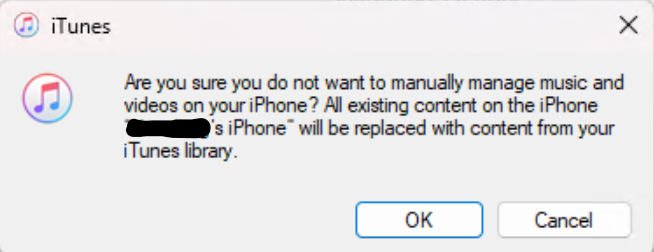
  2. You cannot turn off "Manually manage music and videos" without losing songs that only exist on your iPhone. When you try to turn it off, iTunes will prompt you with this dialog box:

Obviously, the situation is less than ideal. Ideally, we should be able to drag songs that only exist on the iPhone back to iTunes, and vice versa. You should not lose things on either side. 

Oh well. The price we pay for monopolies/authoritarianism.


Wednesday, October 19, 2022

FreeBSD 13.1 as a Guest OS in VMWare Workstation 16 Player

 Five years ago, I installed FreeBSD 11 in a VMWare 12 Player. I wrote about the experience here : http://programount.blogspot.com/2017/05/freebsd-11-as-guest-os-in-vmware.html. 

Recently, I decided to do an upgrade. I installed FreeBSD 13.1 in a VMWare 16 Player. I followed the same steps that I took last time, and completed the installation. After the completion, I logged into the GUI login screen, only to be greeted by a black screen with a mouse cursor.

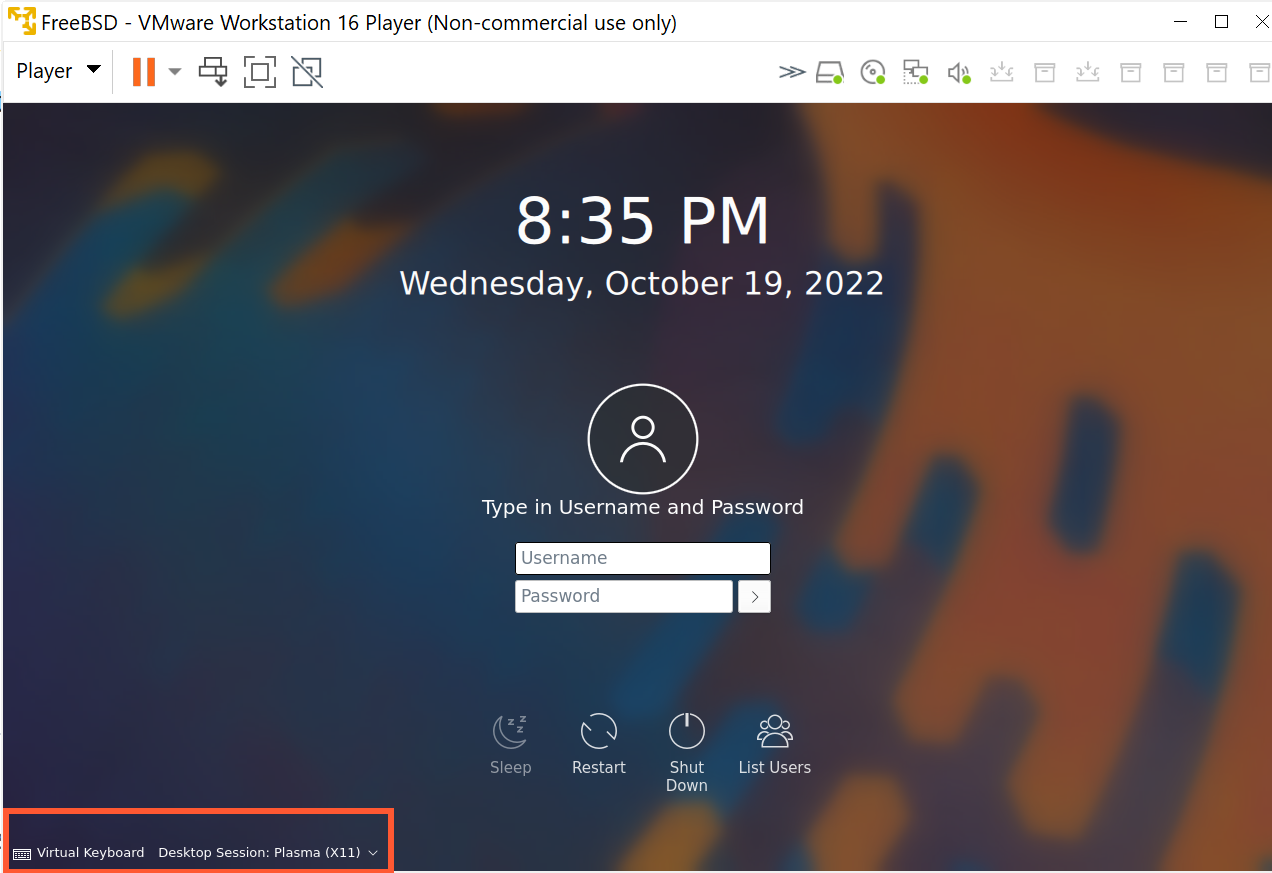
I spent a lot of time reading through many log files. Then by accident I noticed the drop down on the login screen:


The default selection was on "Desktop Session: Plasma (Wayland)". But I did not install "Wayland". In fact, at the site https://community.kde.org/FreeBSD/Setup, "Wayland" is crossed out. So I switched to "Desktop Session: Plasma (X11)", which is what I installed. After that, I logged in, and the Plasma 5 desktop is working.


Tuesday, October 26, 2021

Visual Studio 2019 Was "Unable to Locate .NET Core SDK"

Earlier today I noticed that Visual Studio 2019 (v16.11.5) could not load any of my .NET Core projects projects. When I tried to reload any of them, I got an error saying that "The project file cannot be opened. Unable to locate the .NET SDK" in the output pane, and then nothing happened.

A google search yielded suggestions saying that the version 2.x.xxx .NET Core SDK needed to be installed. Some said that "C:\Program Files\dotnet\" needed to be part of the "PATH" environment variable. Another said that an old "global.json" file was the cause. While each of these solutions worked for some folks, none seemed to work for me. I ran "dotnet --info" on the command line, and this is what I saw:


"No SDKs were found." Then I noticed a comment about x86 version of dotnet at https://superuser.com/questions/1431833/visual-studio-2019-unable-to-locate-net-core-sdk/1441219. I realized that I was running the x86 version of dotnet. Of course, in hindsight, the "C:\Program Files (x86)" paths in the runtime locations should have been a clear indication of the problem. Then I tried running the 64 bit version:


Well, now a whole list of SDKs showed up. It turned out that the paths to both the x86 version of dotnet and the 64 bit dotnet were in my "PATH" environment variable, and the x86 version was listed first. I do not know which installer made this change, for the projects were working fine at one time. I removed the path to the x86 version of dotnet from the "PATH" environment variable, and now everything works fine.

One interesting side-note: Window 11 complained about the size of the "PATH" environment variable, saying that its length had exceeded 2048. I replaced some folder paths with environment variable references, and reduced the length to below 2048. I wondered: when installer apps increased the "PATH" environment variable length to beyond 2048, why did not Windows complain? Would Windows just ignore the part after the first 2048 characters? Or would Windows use the whole "PATH" environment variable, even though its length exceeded 2048, just because some installer app did this? It turns out that a "PATH" environment variable longer than 2048 can cause real problems: https://superuser.com/questions/355594/windows-7s-path-and-environment-variables-are-corrupted, at least for older versions of Windows. For Windows 10, there is a discussion here: https://stackoverflow.com/questions/34491244/environment-variable-is-too-large-on-windows-10. From the look of the error dialog box, this should apply to Windows 11 as well.